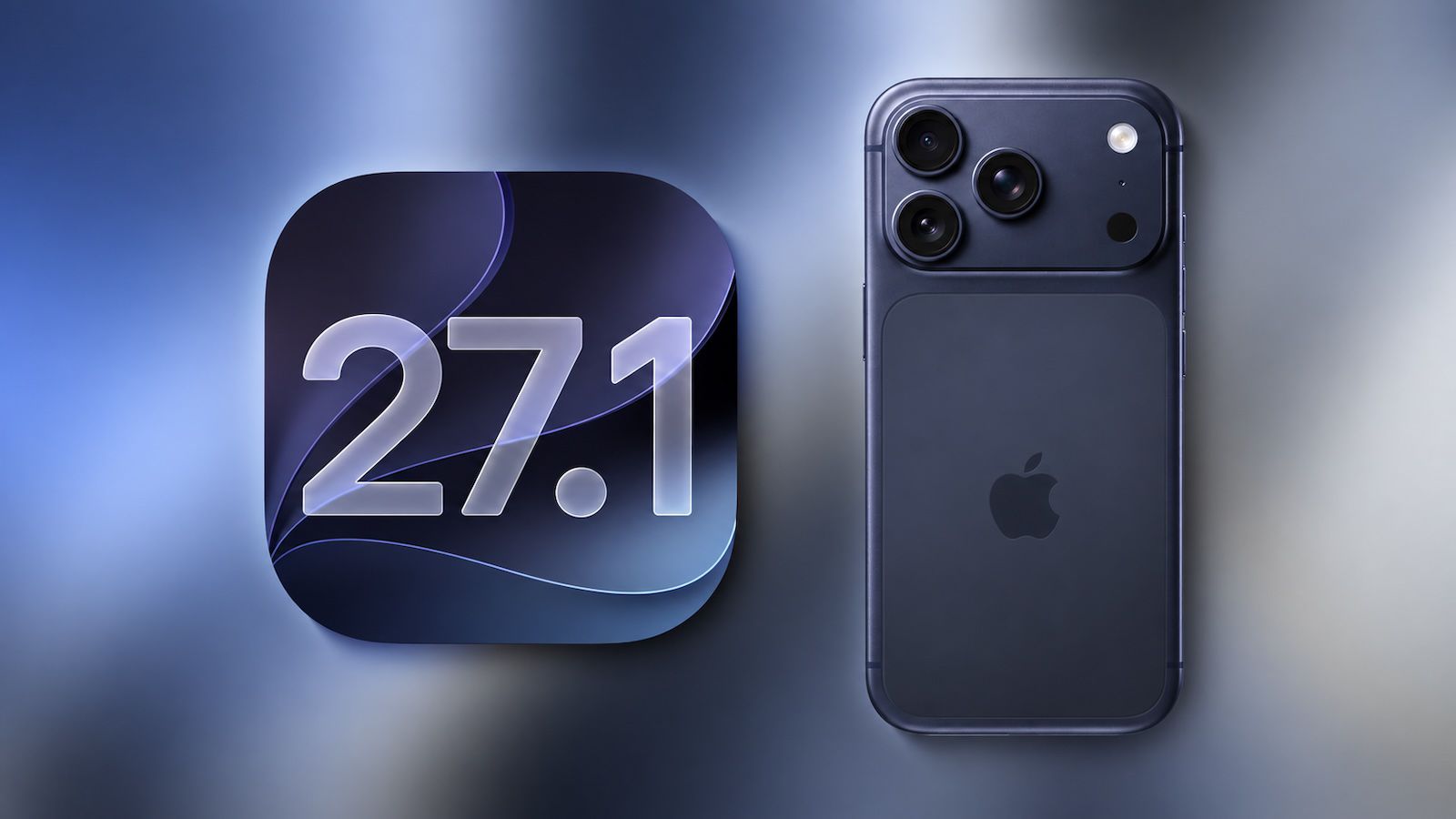
Top 15+ Best iOS 27 Settings You Should Change Right Now
Apple’s iOS 27 update is packed with incredible upgrades, from next-generation Siri AI and Live Translation to advanced camera adjustments and deep personalization tools. However, straight out of the box, default configurations don't always offer the best performance, battery life, or privacy.
Whether you've just updated an older model or picked up a brand-new iPhone 18 Pro, here are the best 15+ iOS 27 settings you should change immediately to optimize your device.
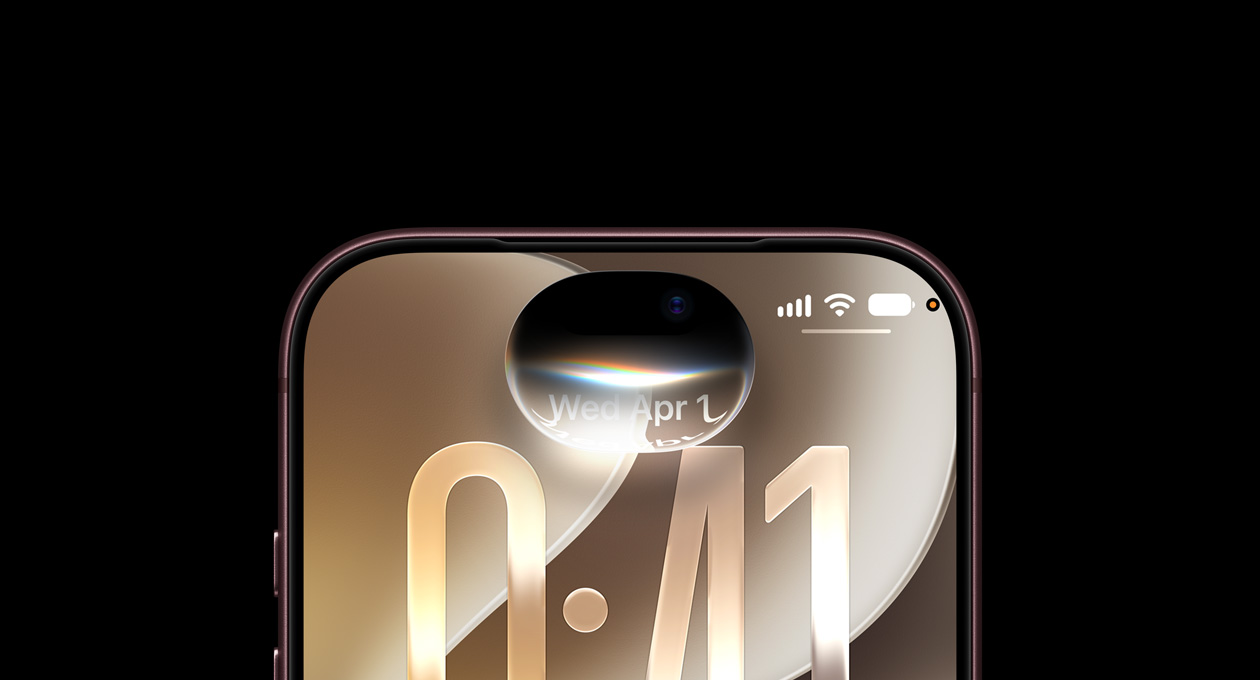
1. Turn On Siri AI & Customize Its Voice
Apple has introduced a smarter, context-aware version of Siri powered by Apple Intelligence. It can understand what’s on your screen and handle complex actions across apps.
How to enable: Go to Settings > Siri > select Try Siri AI (Beta).
Pro Tip: If you're on a supported model, go to Settings > Siri > Voice to adjust Siri's voice style, pace, and expressivity.
2. Enable Stolen Device Protection (Crucial Security)
If your iPhone is ever stolen, this feature adds a mandatory security delay and requires Face ID to change critical details like your Apple ID password—even if someone knows your passcode.
How to enable: Go to Settings > Face ID & Passcode > Stolen Device Protection and toggle it on.
3. Lock and Hide Private Apps with Face ID
iOS 27 lets you lock sensitive banking, messaging, or photo apps behind Face ID. You can even move them to a hidden folder.
How to set up: Touch and hold any app icon on your Home Screen, select Require Face ID, and choose Hide and Require Face ID for ultimate privacy.
4. Set Up Live Translation in Messages & Calls
Commutating across languages is now seamless. Live Translation runs entirely on-device for Messages, Phone, and FaceTime calls.
How to use: Open a chat in Messages, tap the person's name at the top, turn on Automatically Translate, and choose your target language.
5. Enable Call Screening & Live Voicemail
Tired of spam calls? Let your iPhone screen unknown numbers before you pick up.
How to set up: Go to Settings > Apps > Phone. Scroll down to configure Screen Unknown Callers to ask for a reason, and toggle on Live Voicemail to read transcriptions in real time.
6. Optimize Battery Life with Adaptive Power
Adaptive Power learns your daily habits and automatically conserves energy on heavy usage days.
How to enable: Go to Settings > Battery > Power Mode and toggle on Adaptive Power.
Bonus Battery Tip: Set your Optimized Battery Charging limit to 80% if you plan on keeping your device long-term (Settings > Battery > Charging).
7. Turn on Vehicle Motion Cues
If reading or scrolling on your phone in a moving car makes you feel carsick, this clever accessibility feature is a lifesaver.
How to enable: Go to Settings > Accessibility > Motion > Vehicle Motion Cues and select Automatically in Vehicle to display subtle motion dots on your screen edges.
8. Streamline Screenshots: Turn Off Full-Screen Previews
By default, iOS 27 displays full-screen screenshot popups. If you take multiple screenshots in a row, this can get frustrating.
How to change: Go to Settings > General > Screen Capture and toggle off Full-Screen Previews to bring back the clean, temporary thumbnail.
9. Automate Tab Organization in Safari
Stop drowning in dozens of open browser tabs. Safari's new AI features can automatically group your open pages into structured topics like Technology or News.
How to set up: Open Safari, open the Tab Switcher, tap the Filter button at the top, select Organize Tabs, and choose Automatically Create Topics.
10. Customize Your Action Button
Make the physical Action Button work for your daily routine. You can map it to launch Visual Intelligence, the Flashlight, Shortcuts, or Translate instantly.
How to set up: Go to Settings > Action Button and swipe through options to pick your most-used tool.
11. Fine-Tune iPhone 18 Pro Camera Controls
If you are using Apple's latest hardware, iOS 27 grants deep customization over the 48MP Fusion camera, default lenses, photographic styles, and quick adjustments.
How to configure: Go to Settings > Camera > Camera Control, toggle on Camera Adjustments, and customize your layout.
12. Save Storage with High-Efficiency Format
High-resolution photos and 4K videos will eat up your internal storage fast.
How to optimize: Go to Settings > Camera > Formats and switch to High Efficiency (HEIF/HEVC).
13. Turn Off Personalized Ads & App Tracking
Regain control over your digital footprint by restricting how data is shared across apps.
How to change: Go to Settings > Privacy & Security > Tracking to block apps from requesting to track your activity, and head into Apple Advertising to disable Personalized Ads.
14. Stop Annoying In-App Ratings & Reviews
Tired of apps interrupting you to ask for a 5-star review? You can turn them off system-wide.
How to disable: Go to Settings > Apps > App Store and toggle off In-App Ratings & Reviews.
15. Secure Lock Screen Access
Prevent people from toggling your Control Center, replying to messages, or tampering with USB accessories while your phone is locked on a table.
How to configure: Go to Settings > Face ID & Passcode, enter your PIN, and scroll down to Allow Access When Locked to uncheck unnecessary toggles.
16. Verify "Find My iPhone" is Active
Don't skip this critical safety net. Ensure your tracking network is fully operational so you can locate your device if it goes missing.
How to check: Tap your Apple Account name in Settings > Find My > Find My iPhone, and verify that Find My Network and Send Last Location are both toggled ON.
Final Thoughts
Taking just 10 minutes to adjust these hidden options will drastically improve your battery life, secure your private data, and make using iOS 27 a much smoother experience.
Would you like help setting up custom automations or shortcuts for your iPhone next?